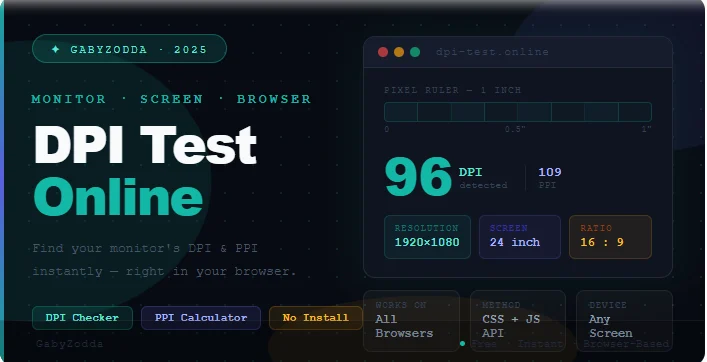
Monitor DPI Test Online — Find Your Screen DPI and PPI in Your Browser
Use our free monitor DPI test online to find your screen dots per inch and PPI instantly — no software, no calibration tools, no download needed.

DPI (Dots Per Inch) and PPI (Pixels Per Inch) tell you how sharp and dense your display actually is — not just its resolution. A 1080p monitor can look razor-sharp or noticeably soft depending on its physical size, and our free monitor DPI test online shows exactly where yours sits. No software download or ruler required.
This is useful for web designers checking image rendering accuracy, developers verifying HiDPI behaviour, or anyone wondering why their new monitor looks blurrier than expected despite having the same resolution as their old one.
🖥️ Free Monitor DPI Test Online
Find your screen DPI and PPI instantly — no download, no calibration tools needed.
What the Tool Calculates
The tool uses your screen resolution and device pixel ratio to calculate PPI:
| Value | What It Means |
|---|---|
| DPI / PPI | Number of pixels per inch of your physical display panel — higher = sharper |
| Physical Resolution | Your screen’s actual pixel count (e.g. 3840×2160 on a 4K panel) |
| Device Pixel Ratio (DPR) | Multiplier between CSS pixels and physical pixels — 2.0 = HiDPI / Retina |
| Display Size (estimated) | Calculated diagonal screen size based on resolution and DPR |
DPI vs PPI — What Is the Difference?
You will see both terms when using the tool. In the context of displays, PPI (Pixels Per Inch) is the technically correct term — it measures how many pixels fit into one physical inch of your screen. DPI technically refers to printer output (dots of ink), but is used interchangeably with PPI in everyday screen discussions. The tool reports your PPI value, which most people call DPI.
PPI Reference Chart — What Is a Good Score?
Use this table to interpret your result and understand what it means for sharpness:
| PPI Range | Quality Level | Typical Display |
|---|---|---|
| Below 90 PPI | Low — pixelation visible up close | Large TV used as monitor |
| 90–110 PPI | Standard — pixels visible at close range | 24” 1080p monitor (92 PPI) |
| 110–140 PPI | Good — comfortable for desk use | 27” 1440p monitor (108 PPI) |
| 140–180 PPI | Sharp — crisp text and images | 24” 1440p, 27” 4K (163 PPI) |
| 180–220 PPI | Very Sharp — minimal pixelation | 13” MacBook Air (227 PPI) |
| 220+ PPI | Retina / Ultra-Sharp | MacBook Pro 14” (254 PPI), iPhone |
Why Does Your DPI Score Matter?
- Text clarity: A higher PPI means sharper text — especially important for coding, writing, and reading
- Photo editing: Designers use this result to ensure images render and print at the correct physical size
- HiDPI scaling: macOS Retina mode and Windows HiDPI activate based on DPI thresholds — your DPI result explains why scaling is or is not triggered
- Viewing distance: A higher PPI matters more at short distances (laptops, phones) than at arm’s length (TV) — as explained in the Apple Human Interface Guidelines on display density
How to Get the Most Accurate Result
Frequently Asked Questions
Common questions about running the monitor DPI test online.
