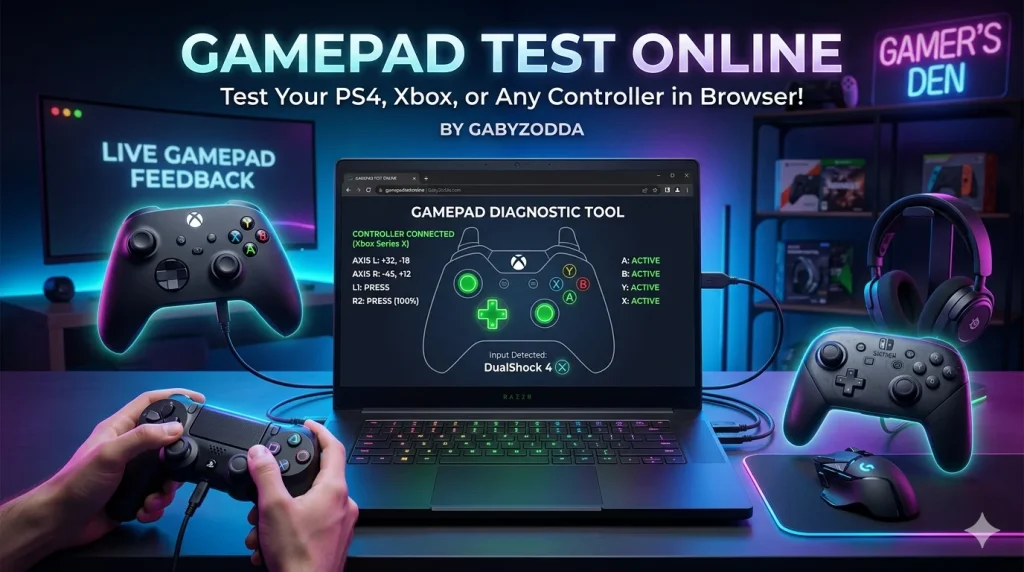
Gamepad Test Online — How to Test Your PS4, Xbox, or Any Controller in Browser
Use our free gamepad test online to check every button, trigger, and analog stick on your PS4, Xbox, or Nintendo controller in real time — no download needed.

Your controller button is not responding, or an analog stick is drifting — but you want to confirm the fault before deciding to repair or replace it. Our free gamepad test online shows every button press, trigger value, and stick position in real time, directly in your browser using the Web Gamepad API (MDN).
A gamepad test online is the fastest way to diagnose controller issues without installing any software. Whether you have a PS4 DualShock 4, Xbox One pad, Nintendo Switch Pro Controller, or a generic USB gamepad, the test works the same way — plug in, open the page, and start pressing buttons.
🎮 Free Gamepad Test Online
Test every button, trigger, and analog stick on your controller right now — no download, no signup needed.
What Our Gamepad Test Checks
The tool covers every input your controller can send to the browser:
| Test Element | What It Detects |
|---|---|
| Face Buttons (A/B/X/Y or Cross/Circle/Square/Triangle) | Whether each button registers correctly on press and release |
| Bumpers and Triggers (LB, RB, LT, RT) | Digital bumpers and analog trigger values (0–1.0) |
| D-Pad | All 4 directions and diagonal combinations |
| Analog Sticks (Left and Right) | X and Y axis values — detects stick drift when idle |
| Stick Click (L3 and R3) | Whether pushing the stick down registers |
| Start / Select / Options / Menu | System buttons (Home/PS/Xbox button is intercepted by OS) |
Compatible Controllers
The W3C Gamepad API specification supports virtually any controller recognized by your OS. The tool works with all of the following:
- 🔸 Xbox Series X/S and Xbox One controllers — wired and wireless via USB
- 🔵 PlayStation DualShock 4 and DualSense — USB or Bluetooth
- 🟢 Nintendo Switch Pro Controller — USB or Bluetooth
- ⚪ Generic USB gamepads and fight sticks
- 📱 Mobile Bluetooth gamepads connected to Android or iOS
How to Use It — Step by Step
What Is Controller Stick Drift?
Stick drift occurs when an analog stick registers movement even when you are not touching it. It is one of the most common hardware failures in gaming controllers — notably reported in Nintendo Switch Joy-Cons, PS5 DualSense, and Xbox Series X controllers after extended use. This quickly confirms drift before you send the controller for repair.
Frequently Asked Questions
Common questions about using a gamepad test online to diagnose controller problems.
