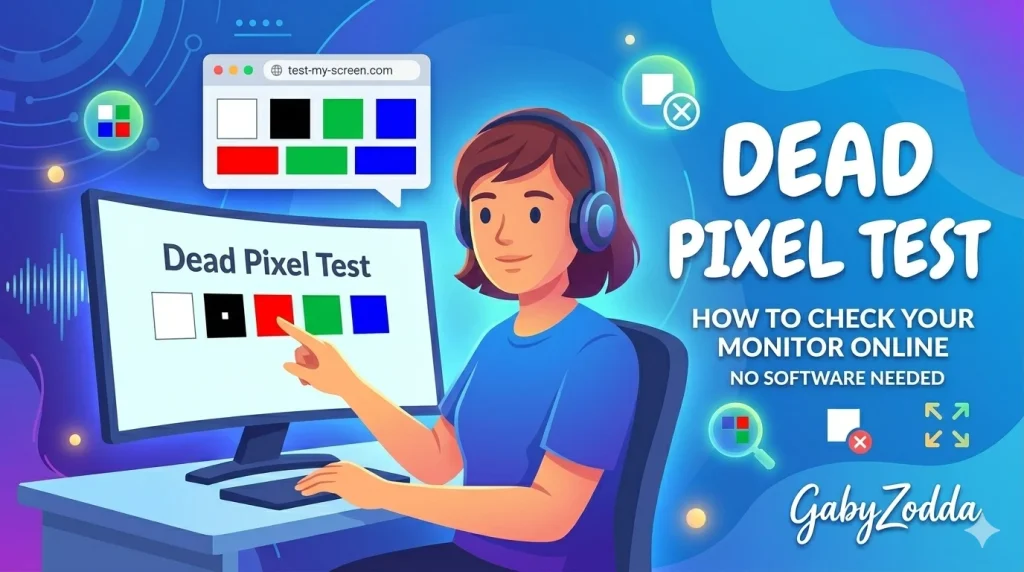
Best Dead Pixel Test — How to Check Your Monitor for Dead or Stuck Pixels Online
Run a free dead pixel test online for any monitor, laptop screen, or TV. Find dead, stuck, or hot pixels in seconds using full-screen solid color patterns — no download or account needed.
You just bought a new monitor — or you have been using one for a while and noticed a tiny dot that never changes color. That is almost certainly a dead or stuck pixel. A free dead pixel test helps you find faulty pixels in seconds using full-screen solid colors that make any defect impossible to miss, whether you are checking a gaming monitor, laptop display, or TV.
🖥️ Free Dead Pixel Test
Check your monitor for dead or stuck pixels right now. Full-screen color test — no download, no account needed.
What Are Dead Pixels?
A dead pixel is a display pixel that has permanently stopped functioning. It appears as a tiny black dot on your screen regardless of what is being displayed, because the pixel receives no power and all three of its color subpixels — red, green, and blue — remain completely off. Running a dead pixel test on a white background makes these black dots clearly visible against the bright field.
A stuck pixel is different from a dead pixel. It is permanently stuck displaying one color because it is receiving a constant voltage that keeps one or more subpixels permanently lit. Stuck pixels appear as tiny colored dots — most commonly bright red, green, or blue — and are sometimes repairable through pixel-cycling software. The dead pixel test on a black background makes stuck pixels easy to identify.
A hot pixel has all three color subpixels stuck at maximum brightness simultaneously, making it appear as a tiny white dot. Hot pixels are relatively rare and almost never self-correct.
Dead Pixel vs. Stuck Pixel — Key Differences
Understanding which type of defect you have matters for warranty claims and repair decisions. Use the dead pixel test across multiple color backgrounds to identify the type precisely:
| Type | Appearance | Fixable? | Common Cause |
|---|---|---|---|
| Dead Pixel | Always black dot on any background | Rarely — hardware failure | Manufacturing defect, physical damage |
| Stuck Pixel | Colored dot (red, green, or blue) | Sometimes — try pixel fixers | Transistor stuck in on position |
| Hot Pixel | Always white or very bright dot | Rarely | Transistor failure, extreme heat exposure |
| Partial Pixel | Dim or wrong-colored dot | Sometimes | One subpixel failed while others work |
How to Run the Dead Pixel Test
Follow these four steps to run a complete dead pixel test on your monitor, laptop screen, or TV:
Which Color to Use for Each Type of Dead Pixel Problem
Each background color in the dead pixel test reveals a different type of defect. For a thorough check, always test all five colors:
- Black screen: Best for finding stuck pixels — any colored dot (red, green, blue, or white) stands out perfectly against a fully black background
- White screen: Best for finding true dead pixels — black dots are clearly visible against the bright white field and are impossible to miss
- Red screen: Reveals dead green and blue subpixels that appear as dark or wrong-colored dots within the red field
- Green screen: Reveals dead red and blue subpixels that appear as dark spots or slightly off-color areas
- Blue screen: Reveals dead red and green subpixels that create visible anomalies within the blue background
Does Your Monitor Warranty Cover Dead Pixels?
This depends on the manufacturer and the number of defective pixels found during your dead pixel test. Most manufacturers follow the ISO 13406-2 standard which classifies displays into quality classes with different acceptable defect thresholds. Premium monitor lines increasingly offer zero-dead-pixel guarantees.
According to ISO 13406-2 Display Quality Standards, monitors are classified into four quality tiers based on acceptable pixel defect counts. Here is how major brands handle dead pixel warranty claims:
- Dell UltraSharp: Zero bright-dot policy — any single dead or stuck pixel qualifies for a replacement panel under their premium panel guarantee
- ASUS ProArt: Zero-tolerance dead pixel warranty on professional display lines — document the defect with your dead pixel test results and contact support
- LG: Typically requires 5 or more dead pixels before replacement is considered on standard consumer models
- Samsung: Varies by model — Odyssey and premium lines offer stronger pixel guarantees than budget models
- BenQ: Most professional models include a dead pixel guarantee during the first year of purchase
Can You Fix a Stuck Pixel?
Stuck pixels — unlike true dead pixels — can sometimes be repaired by rapidly cycling through colors at high speed, which can dislodge a transistor that has become stuck in a fixed voltage state. Several approaches are commonly used after identifying a problem during the dead pixel test:
Software Pixel Fixers
JScreenFix is a widely used free web tool that flashes colors rapidly over a targeted area of your screen for several minutes. Position the flashing square over the stuck pixel location identified in your dead pixel test and run it for 10–20 minutes. Many users report success with this method on recently stuck pixels.
Gentle Physical Pressure
Some users report success applying very gentle pressure with a soft microfiber cloth directly on the stuck pixel location while power-cycling the monitor. Use extreme caution with this approach — excessive pressure can damage the LCD panel and create new dead pixels around the area.
Time and Patience
Some stuck pixels resolve themselves after extended use as the transistor gradually returns to normal operation with thermal cycling. Running your display for several hours on varied content can sometimes clear a recently stuck pixel that your dead pixel test identified.
True dead pixels with completely failed transistors cannot be fixed by any software method. If your dead pixel test reveals a confirmed dead pixel and your monitor is under warranty, contact the manufacturer directly with documentation of the defect.
Related Display Testing Tools on GabyZodda
After your dead pixel test, use these related free display tools to check other aspects of your screen quality:
- Color Accuracy Test — verify your display shows colors correctly across the full spectrum
- Brightness Test — check brightness uniformity and backlight bleed across your screen
- Screen Resolution Detector — confirm your display is running at its native resolution
- Webcam Test Online — verify your camera is working correctly for video calls
- Reaction Time Test — benchmark your reflexes alongside your display performance
