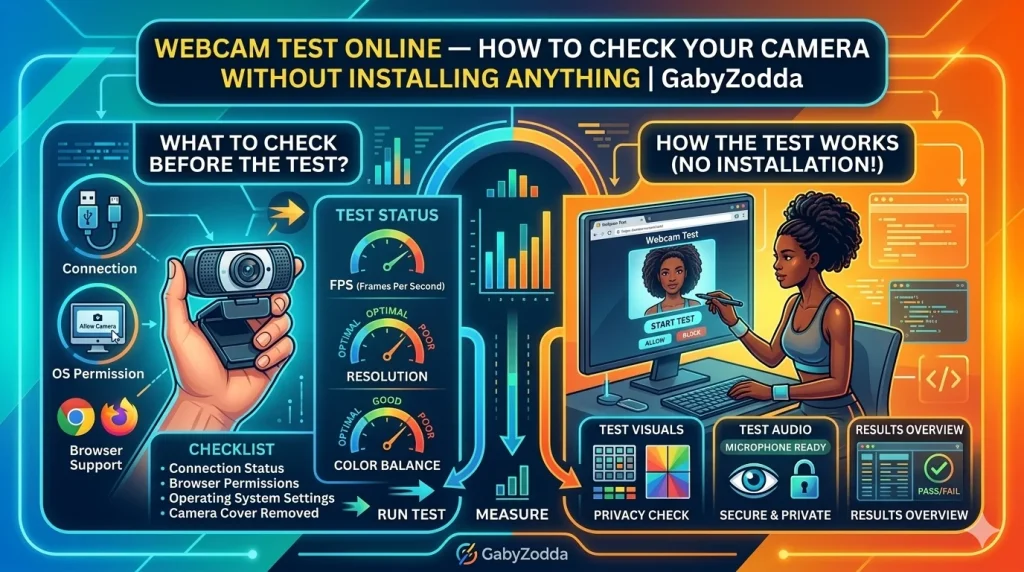
Best Webcam Test Online — How to Check Your Camera Without Installing Anything
Run a free webcam test online and instantly check your camera’s live video preview, resolution, frame rate, and snapshot quality — all in your browser with no software or account required.
You are about to start a job interview, a client call, or a live stream — and you need to confirm your camera is working correctly before it matters. A free webcam test online shows you exactly what your camera sees, its resolution, and frame rate in real time, all without downloading any software or creating an account.

📷 Free Webcam Test Online
See your live camera preview, check resolution and FPS, and take a snapshot — all in your browser right now, no signup needed.
How to Run a Webcam Test Online
Running a webcam test online on GabyZodda takes less than 30 seconds and requires no downloads. Follow these four steps:
What to Look for in Your Webcam Test Online Results
Use this reference table to interpret what your webcam test online results mean and identify any problems before they affect an important call or stream:
| What to Check | Good Result | Problem Sign |
|---|---|---|
| Live Preview Appears | Video shows immediately after permission grant | Black screen — camera blocked or wrong device selected |
| Resolution | 720p (1280×720) minimum, 1080p preferred | 240p or 480p — old camera or incorrect resolution setting |
| Frame Rate (FPS) | 25–30 FPS for calls, 60 FPS for streaming | Below 15 FPS — lighting issue, bandwidth limit, or driver problem |
| Color Accuracy | Natural, balanced colors matching real life | Green tint or yellow cast — white balance misconfiguration |
| Focus Quality | Sharp image of your face and background | Permanently blurry — fixed-focus lens or dirty camera lens |
| Exposure | Evenly lit face without harsh shadows | Overexposed or very dark — lighting placement issue |
Common Webcam Problems and How to Fix Them
Webcam Test Online Shows a Black Screen
A black screen during the webcam test online is the most common issue and is almost always caused by one of these fixable problems:
- Another application like Zoom, Microsoft Teams, or OBS is currently using the camera exclusively. Close all other apps that might be accessing your webcam, then retry the test
- Check your browser’s camera permissions by clicking the camera icon in the address bar and ensuring access is set to Allow for this site
- Try a different browser — Chrome and Edge have the most reliable webcam API support across all operating systems
- For USB webcams, unplug the cable and reconnect it to a different USB port, preferably a USB 3.0 port directly on the motherboard
- On Windows, check Privacy Settings and confirm that browser apps have permission to access the camera under Settings > Privacy > Camera
Low Resolution or Blurry Image in Webcam Test
- Clean the camera lens with a microfiber cloth — fingerprints and dust dramatically reduce sharpness and are the most overlooked cause of blurry webcam footage
- Check your webcam software such as Logi Tune or Razer Synapse Camera to ensure the resolution is not set to a lower mode than your hardware supports
- Improve your room lighting — most webcams automatically reduce resolution in low-light conditions to maintain acceptable frame rates
- Ensure the camera is not physically damaged or has a cracked lens from being dropped or pressed
Low FPS or Choppy Video in Webcam Test Online
- Add more lighting sources pointed at your face — most webcams drop frame rate significantly in low-light environments to gather more light per frame
- Close CPU-heavy background applications that may be competing for processing resources with the webcam driver
- For USB webcams, connect directly to a USB 3.0 port on the motherboard rather than through a USB hub, which can cause bandwidth limitations
- Update your webcam driver through Device Manager on Windows or System Preferences on macOS
Best Webcams for Video Calls in 2026
After running your webcam test online, if your current camera does not meet your quality needs, here is what to look for when upgrading:
- Minimum for professional video calls: 1080p at 30 FPS — the Logitech C920 and similar models meet this standard and remain widely used in professional settings
- Recommended for regular remote work: 1080p at 60 FPS or 4K at 30 FPS — options like the Logitech Brio, Razer Kiyo Pro, and Elgato Facecam offer significantly better low-light performance
- For streaming and content creation: 4K at 60 FPS via a mirrorless camera — using a Sony ZV-E10 or Canon M50 with a capture card produces the highest quality results that no dedicated webcam can match
According to Mozilla MDN Web Docs on the getUserMedia API, modern browsers support direct webcam access without any plugins using the WebRTC MediaDevices API — which is exactly what GabyZodda’s webcam test online tool uses to display your camera feed securely and locally.
How to Improve Your Webcam Quality Without Buying a New Camera
Improve Your Lighting First
Lighting has a far greater impact on perceived webcam quality than camera hardware. A well-lit setup with a $20 ring light will outperform a $200 webcam in a dark room every time. Position your light source in front of you facing your face, ideally at eye level or slightly above, and avoid windows behind you that create a silhouette effect during your webcam test online preview.
Use a Clean, Neutral Background
A plain wall, bookshelf, or professional backdrop behind you reduces visual distractions and allows your webcam’s autofocus to lock on your face rather than competing background elements. Many webcam compression algorithms also perform better with simpler backgrounds, improving the perceived video quality on the receiving end.
Position the Camera at Eye Level
Mounting your webcam at eye level creates a natural, professional perspective. Cameras positioned below eye level produce an unflattering upward angle that makes video calls feel awkward. Use a monitor arm, laptop stand, or stack of books to raise your webcam to eye level before your next webcam test online to see the difference immediately.
Related Camera and Hardware Testing Tools on GabyZodda
After your webcam test online, explore these related free tools to test other aspects of your hardware setup:
- FPS Meter — measure your camera or display frame rate in detail
- Resolution Detector — check your screen and camera resolution precisely
- Microphone Test — verify your mic is working correctly before calls
- Mirror Preview — see your camera output in mirror mode for self-review
- Reaction Time Test — benchmark your reflexes with a free online test
