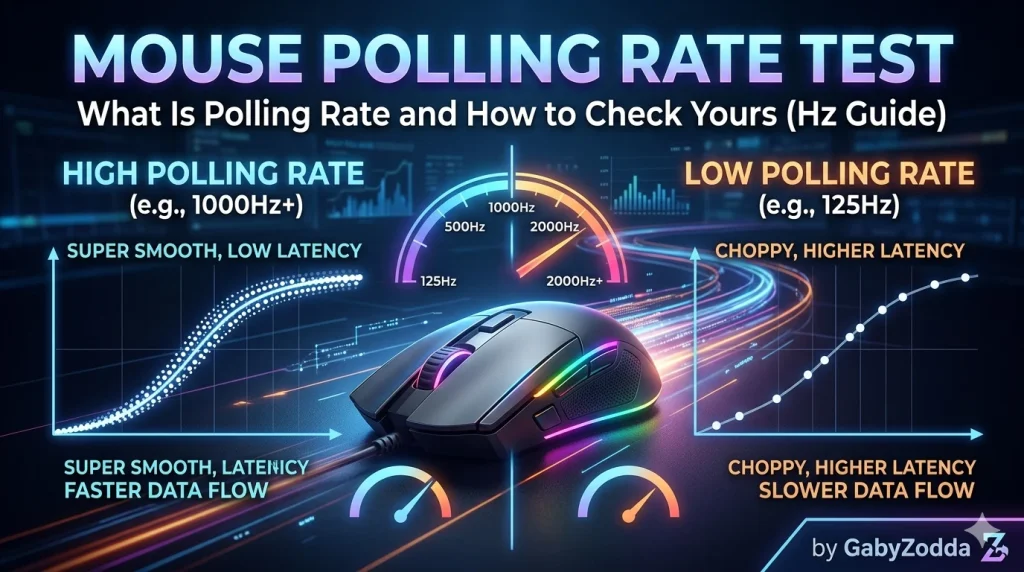
Best Mouse Polling Rate Test — What Is Polling Rate and How to Check Yours (Hz Guide)
Run a free mouse polling rate test online and check your mouse Hz instantly in your browser. Learn what polling rate means, how it affects gaming, and how to optimize it for your setup.
You have probably seen gaming mice advertised as 1000Hz or even 8000Hz — but what does that actually mean for your gameplay? A free mouse polling rate test gives you the answer instantly in your browser. This complete guide explains polling rate, how it affects gaming performance, and exactly how to check and optimize yours without downloading any software.
⌫ Free Mouse Polling Rate Test
Check your mouse Hz right now — move your mouse in the test zone and see your live polling rate instantly.
What Is Mouse Polling Rate?
Every time your mouse moves or clicks, it sends a position report to your computer. Mouse polling rate is how many of those reports are sent per second, measured in Hertz (Hz). A mouse with a 1000Hz polling rate sends 1,000 position updates every second — one update every 1 millisecond. Running a mouse polling rate test tells you exactly how many times per second your mouse is actually reporting to your system.
In practical terms, a higher polling rate means your cursor movement on screen stays more accurately synchronized with your physical hand movement, with less delay between your physical action and the on-screen response. This is why competitive gamers pay close attention to polling rate alongside DPI and sensor quality.
According to Mozilla MDN MouseEvent documentation, browsers receive mouse position updates as events fired by the operating system’s input stack. The frequency of these events directly reflects your mouse’s polling rate, which is what GabyZodda’s mouse polling rate test measures in real time.
Polling Rate Hz Values Explained
Use this reference table to understand what each polling rate value means for your mouse polling rate test result and how it compares to different use cases:
| Polling Rate | Update Interval | Who It Is For |
|---|---|---|
| 125 Hz | 8ms per update | Office work and basic use — standard on most budget and OEM mice |
| 250 Hz | 4ms per update | General use and casual gaming — noticeably smoother than 125Hz |
| 500 Hz | 2ms per update | Competitive gaming — good balance of smoothness and CPU efficiency |
| 1000 Hz | 1ms per update | Esports standard — used by the vast majority of professional players |
| 2000 Hz | 0.5ms per update | High-end competitive — growing adoption among top-tier CS2 players |
| 4000 Hz | 0.25ms per update | Ultra-competitive — Razer Viper V3 HyperSpeed, Logitech G Pro X Superlight 2 |
| 8000 Hz | 0.125ms per update | Maximum tier — minimal practical benefit over 1000Hz for most users |
How to Run the Mouse Polling Rate Test
Follow these three steps to run an accurate mouse polling rate test on GabyZodda:
Why Your Browser Mouse Polling Rate Test Shows Lower Hz Than Expected
Browser-based mouse polling rate test tools typically show values 10–20% lower than your mouse’s actual hardware rate. This is completely normal and expected behavior, not a fault with the tool or your mouse.
Browsers cannot access raw USB data directly. Mouse events are received after they pass through the operating system’s input stack, the browser’s event queue, and the JavaScript runtime — all of which introduce small processing delays that reduce the apparent event frequency measured by the mouse polling rate test.
Does Mouse Polling Rate Affect Gaming Performance?
Yes — within meaningful limits. Upgrading from 125Hz to 1000Hz makes a very noticeable difference in competitive gaming. Your aim tracking feels more precise, cursor movement appears smoother, and there is less perceived input lag between your hand movement and the on-screen response. This is why running a mouse polling rate test is a standard part of setting up a new gaming mouse.
However, going from 1000Hz to 8000Hz provides heavily diminishing returns that most players cannot perceive during actual gameplay. The performance difference between 1000Hz and 8000Hz is far smaller than the difference between 125Hz and 1000Hz. Ultra-high polling rates also consume more CPU resources and can cause micro-stutters on lower-end systems.
The practical sweet spot for most competitive gamers is 1000Hz. It delivers 1ms input delay, runs smoothly on any modern CPU, and remains the standard used by professional esports players across Valorant, CS2, and Apex Legends.
Mouse Polling Rate vs. DPI — What Is the Difference?
These two settings are frequently confused but control completely different aspects of mouse behavior:
- Mouse polling rate controls how often your mouse sends position data to your computer — it directly affects input latency and the smoothness of cursor movement. Your mouse polling rate test measures this value.
- DPI (Dots Per Inch) controls how far the cursor travels on screen per inch of physical mouse movement — it affects cursor speed and sensitivity but has no direct impact on input latency.
The two settings work completely independently. You can have high DPI with low polling rate, or low DPI with high polling rate. For competitive gaming, most professionals use 400–800 DPI combined with 1000Hz polling rate — low DPI for precision aiming paired with high polling rate for smooth, low-latency tracking.
How to Change Your Mouse Polling Rate
Most gaming mice allow you to change polling rate through the manufacturer’s companion software. Here is where to find the setting in each major brand’s app after confirming your current value with a mouse polling rate test:
- Logitech mice: Logitech G Hub → Select your device → Device Settings → Report Rate
- Razer mice: Razer Synapse → Mouse → Performance tab → Polling Rate slider
- SteelSeries mice: SteelSeries GG app → Devices → your mouse → Polling Rate
- Corsair mice: Corsair iCUE → your mouse → Settings → Report Rate
- ASUS ROG mice: Armoury Crate → Devices → your mouse → Polling Rate
Budget and office mice without companion software are usually locked at 125Hz and cannot be changed without hardware modification. Run the mouse polling rate test to confirm your current rate before making changes, and retest after adjusting to verify the new setting took effect.
Related Performance Testing Tools on GabyZodda
After your mouse polling rate test, try these related free tools to benchmark your complete gaming and hardware setup:
- Reaction Time Test — measure how fast your brain and fingers respond to visual stimuli
- Typing Speed Test — check your WPM, accuracy, and error rate in 60 seconds
- Click Speed Test — measure your clicks per second for gaming performance
- Key Ghosting Test — check how many simultaneous keypresses your keyboard supports
- System Latency Test — measure total input-to-output delay on your system
