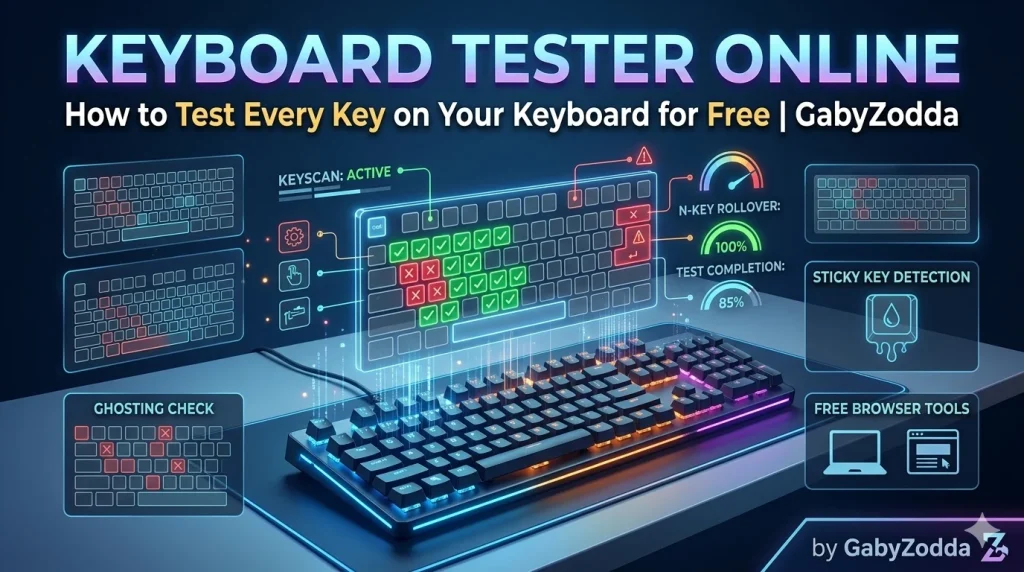
Best Keyboard Tester Online — How to Test Every Key on Your Keyboard for Free
Use our free keyboard tester online to check every key on your keyboard instantly. Detect stuck, dead, or double-firing keys in seconds — no download or account needed.
If you have ever pressed a key and nothing happened — or watched a character repeat itself endlessly — you know how frustrating keyboard problems can be. A free keyboard tester online lets you diagnose exactly which keys are failing in seconds, without downloading a single file or needing any technical knowledge.
⌨️ Free Keyboard Tester Online
Test every key on your keyboard right now — no download, no account, instant results in your browser.
What Is an Online Keyboard Tester?
An online keyboard tester is a browser-based tool that registers every keydown and keyup event from your physical keyboard and shows you which keys are responding correctly. When you press a key, it lights up on a virtual keyboard displayed in your browser. If a key does not light up when pressed, that key is not registering — which points directly to a hardware, driver, or firmware problem.
Unlike traditional diagnostic software, a keyboard tester online works in any modern browser on any operating system including Windows, macOS, Linux, Android, and iOS. No installation, no administrator privileges, no risk to your system. According to Mozilla MDN KeyboardEvent documentation, browsers can capture keyboard input events with full key identification, which is exactly the mechanism our keyboard tester online uses to detect and display your keystrokes in real time.
How to Use GabyZodda’s Keyboard Tester Online
Follow these four steps to run a complete keyboard tester online check on GabyZodda:
Common Keyboard Problems You Can Detect With the Keyboard Tester Online
Here is what each type of failure looks like in the keyboard tester online and its most likely cause:
| Problem | What It Looks Like in the Tester | Likely Cause |
|---|---|---|
| Dead Key | Key does not light up when pressed | Broken switch, dirty contact, or hardware failure |
| Stuck Key | Key stays highlighted permanently | Debris under the keycap, broken spring, or liquid damage |
| Double-Firing Key | Two inputs register from one press | Switch wear (common on mechanical keyboards), debounce issue |
| Wrong Key Registers | A different key lights up than the one pressed | Driver bug, firmware issue, or remapped key in OS settings |
| Intermittent Key | Key lights up inconsistently across multiple presses | Loose keycap, worn switch, or connection issue |
| Delayed Key | Key registers noticeably after physical press | USB polling issue, driver lag, or wireless connection problem |
Why Some Keys Don’t Register in Browser Keyboard Testers
A few keys are intercepted by the operating system before they ever reach the browser. If these keys do not light up in the keyboard tester online, that is completely normal and does not indicate a keyboard problem:
- PrintScreen (PrtSc): Intercepted by Windows for screenshot functions before the browser receives the event
- Ctrl+Alt+Del: Reserved by Windows as a secure attention sequence and never passed to applications or browsers
- Fn key combinations: Handled at the keyboard firmware level and never sent as standard key events to the operating system
- Windows/Super key: May open the Start Menu or application launcher before the browser keyboard tester online can capture it
- Some media keys: Handled directly by the OS media stack and may not fire standard keyboard events
Testing Mechanical vs Membrane vs Laptop Keyboards
The keyboard tester online works equally well on all keyboard types, but each has specific failure patterns to watch for during your test:
Mechanical Keyboards
The most common problem in the keyboard tester online for mechanical keyboards is double-firing, also called chattering. This happens when a switch wears out after millions of keystrokes and begins registering two inputs from a single physical press. It is most common on heavily used keys like Space, Enter, and the most-typed letters. Chattering can sometimes be fixed with switch lubricant or completely resolved by replacing the individual switch on hot-swap keyboards.
Membrane Keyboards
Look for dead zones and keys that require significantly more pressure than surrounding keys to register in the keyboard tester online. Membrane keyboards are harder to repair than mechanical ones — the membrane layer can degrade over time, especially on budget models — but they are straightforward to diagnose. A dead key on a membrane keyboard almost always means the underlying membrane contact point has worn through or lifted.
Laptop Keyboards
Intermittent key registration is the most common laptop keyboard failure in the keyboard tester online. Debris, crumbs, and dust that accumulate under laptop keycaps are the leading cause, followed by spill damage to the thin membrane layer. Compressed air applied around the affected keys resolves many laptop keyboard issues before any hardware repair is needed.
How to Fix a Stuck or Dead Key After the Keyboard Tester Online Identifies It
Once your keyboard tester online session identifies a problematic key, here are your repair options in order from simplest to most involved:
- Clean with compressed air: Blast air under the keycap from multiple angles. Debris is the leading cause of stuck and intermittent keys on all keyboard types
- Remove and reseat the keycap: Pull the keycap off mechanical keyboards, clean the switch stem and housing underneath, then press the keycap back on firmly until it clicks into place
- Check software and OS settings: Open your keyboard settings in Windows or macOS to ensure no keys are remapped, disabled, or assigned to accessibility features that could interfere with normal input
- Update keyboard drivers: Outdated drivers can cause keys to report incorrectly in the keyboard tester online. Check Device Manager on Windows or System Information on macOS for driver updates
- Replace the switch: On hot-swap mechanical keyboards, a faulty switch can be pulled out and replaced with a new one in under two minutes without soldering tools
- Contact warranty support: Document the failing key with your keyboard tester online results and contact the manufacturer if the keyboard is under warranty
Related Input Device Testing Tools on GabyZodda
After your keyboard tester online session, try these related free tools to test your full input device setup:
- Key Ghosting Test — check how many simultaneous keypresses your keyboard supports (NKRO vs 6KRO)
- Mouse Tester — verify all mouse buttons and scroll wheel are registering correctly
- Mouse Polling Rate Test — check your mouse Hz for gaming accuracy
- Typing Speed Test — benchmark your WPM and accuracy after confirming all keys work
- Reaction Time Test — measure your reflex speed for gaming and performance benchmarking
